Barn2 Media WooCommerce Quick View Pro
Antivirus scan
Powered by ClamAV
✅ Verified clean
This product file has passed our security filters.
Want to run a fresh ClamAV scan right now? Takes a few seconds and shows scanner version, signature DB and live result.
This can take 5 to 30 seconds.
Clean file Threat detected
No threats detected in this file.
- File
- Size
- Scanned
- ClamAV
- Signature database
⚡ Powered by ClamAV
Scan could not be completed
Report product
If you detected an issue (broken file, malware, inappropriate content, etc.) let us know and we'll review it ASAP.
Sign in to report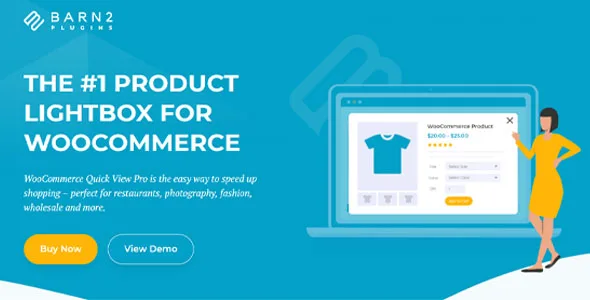
About Barn2 Media WooCommerce Quick View Pro
Whoever buys from the window never reads the product page
You set up a quick view so the customer can decide without leaving the listing, and the question is what to put inside the window.
Someone who buys from the quick view window does not open the product page, so whatever you leave out of it they never read. Variations and add-ons appear above the add to cart button, so the order is completed without leaving the window. For those buyers, the window is the product page.
WooCommerce Quick View Pro, by Barn2, opens a product's details in a pop-up window (lightbox) over the listing. Each element in that window is shown or hidden from the settings page, and no code is needed.
What is inside the window and how it opens
- Three ways to open it: a button next to Add to Cart, a button when the cursor hovers over the image, or a click on the product name or image with product links disabled.
- The button: you replace the "Quick View" text with your own and show or hide the eye icon.
- Content: ratings and reviews, price, short and full description, add to cart button, meta (SKU, categories and tags), attributes, a link to the product page and previous and next arrows.
- Layout: image only, details only or both; with both, the columns stack on mobile.
- Gallery: one image or the full gallery, with thumbnails or navigation bullets, and a hover zoom you turn on or off.
- Product types: simple, variable, grouped, external or affiliate, virtual and downloadable.
- After adding: the window stays open or closes, or the customer goes straight to the cart.
- Shortcode: places the quick view anywhere on the site.
On across the store, except in the categories you choose
Quick view is enabled globally and disabled for specific categories and subcategories. With that base, the setup is refined in two steps: first, what the window shows; then, how it opens.
A test you can run: open a variable product and one with add-ons, and check what a buyer sees from the window and whether something is missing that only the full page explains. It is your own check, not a plugin function, so you decide which details stay visible.
It integrates with Barn2's WooCommerce Product Options and WooCommerce Product Table, and with WooCommerce Add-Ons, Bundles, Subscriptions, Composite Products and Deposits. For multilingual sites it is compatible with Weglot, WPML and TranslatePress, and it supports right-to-left languages.
What depends on the theme and what to look up outside the settings
The window inherits your theme's styles, and it works with any well-coded theme. If something looks different from your design, check the theme's styles first.
The shortcode syntax is in Barn2's knowledge base; check it before placing the quick view in a specific spot.
Installation and first settings
You need WooCommerce active on the site. Then:
- Install the plugin with the WordPress installer and activate it.
- Open the Quick View Pro settings page.
- Enable quick view globally and exclude the categories you do not want.
- Choose how the window opens and the button text.
- Pick the window's content and layout, save and test with a variable product.
Quick views and product tables to compare
To compare with other quick views, look at WooCommerce Quick View and WPC Smart Quick View for WooCommerce. If what you need is a product table with direct purchase, check WooCommerce Product Table, from the same vendor.
Answers about Quick View Pro
Can I turn it off in some categories?
Yes. It is enabled globally and disabled for specific categories and subcategories.
Does it work with variable products?
Yes. Variations appear above the add to cart button inside the window.
Can I change the button text?
Yes. You replace "Quick View" with your own text and decide whether the eye icon shows.
Can the customer keep shopping after adding a product?
You choose: the window stays open or closes, or the customer goes straight to the cart.
Topics
Version history
-
v
1.8.0 Current 31 Oct 2026
-
v
1.7.17 29 Jul 2026
-
v
1.7.16 17 Mar 2026
Customer reviews
Sign in to leave a review. Only people who have the product can review it.
No reviews for this product yet.
Frequently asked questions
-
GPL (General Public License) is the license under which WordPress and most premium plugins/themes are distributed. It grants you the right to use, modify and redistribute the software in as many projects as you want, with no domain restrictions.
-
Yes. With membership you get automatic updates via our GPLClub Updater plugin (installed on your WP, detects new versions and applies them). With individual purchase, you get one year of manual updates from your account.
-
Depends on the plan. Monthly: 3 domains. Semi-annual: 7. Annual and Lifetime: 15. Individual purchase: 1 domain.
-
GPLClub offers its own support for installation, configuration and compatibility. For direct support from the original author (feature requests, product-specific bugs), a license purchased from the author is required.