External Event Sources for Calendarize it!
Antivirus scan
Powered by ClamAV
✅ Verified clean
This product file has passed our security filters.
Want to run a fresh ClamAV scan right now? Takes a few seconds and shows scanner version, signature DB and live result.
This can take 5 to 30 seconds.
Clean file Threat detected
No threats detected in this file.
- File
- Size
- Scanned
- ClamAV
- Signature database
⚡ Powered by ClamAV
Scan could not be completed
Report product
If you detected an issue (broken file, malware, inappropriate content, etc.) let us know and we'll review it ASAP.
Sign in to report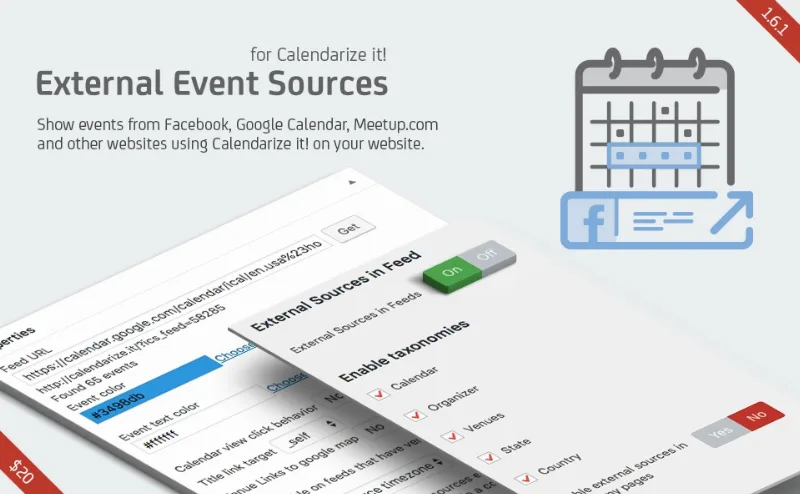
About External Event Sources for Calendarize it!
For people who already use Calendarize it! and live off other people's calendars
Keeping a website calendar up to date is double work: events are announced on Facebook, organized in Google Calendar or published on Meetup, and someone has to copy them by hand into the site. Forget one and the calendar lies. This add-on tackles exactly that problem: instead of retyping every event, you add a feed and the events show up in your calendar.
It does not suit anyone looking for a standalone calendar: it is an add-on and needs Calendarize it! installed. Nor is it for anyone expecting Facebook to work by just pasting a page address, as explained below.
Which sources External Event Sources can read
- Google Calendar, both public and private calendars.
- ICS (iCal) feeds from Microsoft Office 365.
- Meetup.com.
- Facebook, through an ICS address of your events.
- Other WordPress sites that use Calendarize it!, using the address of their calendar.
Facebook is no longer as direct as it used to be
Because of changes in the Facebook API, access to its events and groups APIs is no longer available for fetching events automatically. The alternative is the ICS feed: you mark events on Facebook as "Interested" or "Going", copy the address of the upcoming events link on your events page and paste it into the add-on.
This means only the events you mark from your account come in, not all the events of any page. If you planned to import the full calendar of a third-party page, don't count on it.
How to mix your own and external events with shortcodes
Control lives in the calendar shortcode, and this is what helps most when deciding:
- Everything together: the standard shortcode shows your events and the external ones.
- Only your own: add feed="0".
- Only external ones: add feed="1".
- A specific feed: combine feed="1" with the taxonomy and terms attributes to show one or several calendars.
- A specific author: use the author or author_name attribute together with feed="1".
This lets you have one page with the full calendar and another showing only, for example, one organizer's calendar. If you also have the taxonomy filter, visitors can switch calendars from a drop-down.
Showing events from another site that uses Calendarize it!
If another WordPress site uses Calendarize it!, the address of its calendar is enough, indicating the specific calendar you want to bring in. However, the other site must use Calendarize it!: it doesn't work with just any WordPress site.
Frequently asked questions
Does it work without Calendarize it!?
No. It is an add-on and depends on that plugin to display the events.
Can I bring in all the events from a Facebook page?
Not automatically. Facebook works through the ICS feed of the events you mark as "Interested" or "Going".
Can I show only the external events?
Yes, with the feed="1" attribute in the shortcode.
Does it work with private Google calendars?
Yes, there is an example with a private calendar, but you will need the corresponding feed address.
Can I filter by author or by calendar?
Yes, with the author, author_name, taxonomy and terms attributes.
Topics
Version history
-
v
1.6.5.97981 Current 12 May 2024
Customer reviews
Sign in to leave a review. Only people who have the product can review it.
No reviews for this product yet.
Frequently asked questions
-
GPL (General Public License) is the license under which WordPress and most premium plugins/themes are distributed. It grants you the right to use, modify and redistribute the software in as many projects as you want, with no domain restrictions.
-
Yes. With membership you get automatic updates via our GPLClub Updater plugin (installed on your WP, detects new versions and applies them). With individual purchase, you get one year of manual updates from your account.
-
Depends on the plan. Monthly: 3 domains. Semi-annual: 7. Annual and Lifetime: 15. Individual purchase: 1 domain.
-
GPLClub offers its own support for installation, configuration and compatibility. For direct support from the original author (feature requests, product-specific bugs), a license purchased from the author is required.