Gravity Forms GP Sliders
Antivirus scan
Powered by ClamAV
✅ Verified clean
This product file has passed our security filters.
Want to run a fresh ClamAV scan right now? Takes a few seconds and shows scanner version, signature DB and live result.
This can take 5 to 30 seconds.
Clean file Threat detected
No threats detected in this file.
- File
- Size
- Scanned
- ClamAV
- Signature database
⚡ Powered by ClamAV
Scan could not be completed
Report product
If you detected an issue (broken file, malware, inappropriate content, etc.) let us know and we'll review it ASAP.
Sign in to report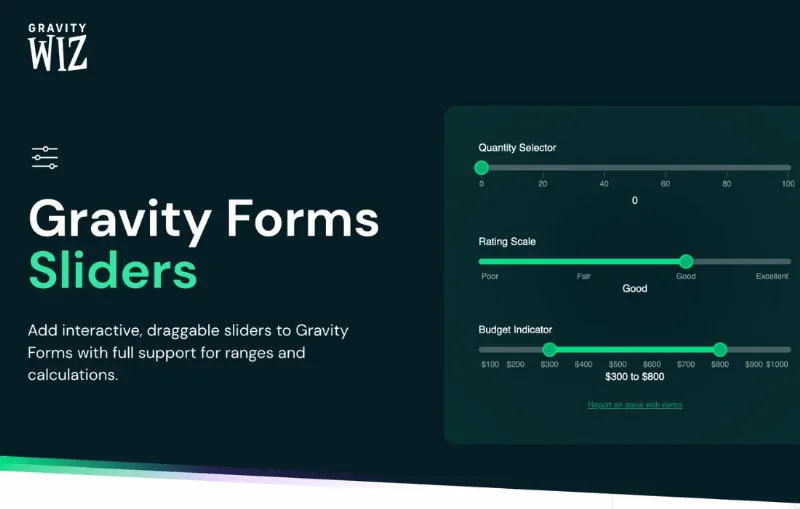
About Gravity Forms GP Sliders
When asking for a typed number makes visitors give up
A budget form that asks how much you want to spend and leaves an empty field forces people to decide on a figure with no reference at all. Some type anything, some leave it blank and some close the tab. In a lead capture form, the problem is often not interest: people don't know what the thing they want costs until they see options in front of them.
GP Sliders replaces that empty field with a draggable control. The visitor sees the minimum, the maximum and the possible steps, and chooses within a frame. For you, the data is still a clean number.
Building a budget picker with GP Sliders, step by step
Step 1: choose where the slider goes. You can add the Slider field (found under Advanced Fields) or enable the slider on a Number or Quantity field you already have, from the Perks tab. The second option saves you from rebuilding a form that already works.
Step 2: define the scale. With a numeric scale you set the minimum, maximum and step size, and it supports decimals, negative values and fractional steps. With a scale of choices you set your own labels, from Poor to Excellent for example, and add as many steps as you need. Every option stores a numeric value, so they work in conditional logic and calculations.
Step 3: ask for a range. If you want a minimum and maximum budget, enable the range: both ends of the slider become handles and you collect a start value and an end value. There is one limit here: ranges only work with the Slider field. A Number field stores a single value, so it isn't available there.
Step 4: adjust how it looks. The slider can be horizontal or vertical, and all of these options can be combined:
- Prefixes and suffixes on the displayed value, such as $ or lbs.
- Visible decimals and your own separator between the ends of a range (for example, 140lbs to 220lbs).
- Tick marks and labels at each step, so people can see where the control snaps.
- The value next to the slider or as a tooltip on the handle.
All of this is visual only: prefixes, suffixes and separators are not saved in the entry, so they don't clutter your exports.
Step 5: use the value. Slider fields and slider-enabled Number fields work with Gravity Forms calculations, conditional logic and exports. There are merge tags for a single value and, for ranges, one for the start and one for the end. If you want formulas with advanced mathematical functions or conditionals, you need GP Advanced Calculations, which is a separate plugin: the slider is compatible with it, but doesn't include it.
Questions that come up before placing your first slider
Can I make a continuous slider?
Not exactly: the control always snaps to the next step. To make it feel continuous, set a very small step, such as 0.1.
Can I require a minimum different from the one shown on the track?
Yes, with a PHP code snippet that requires a minimum submitted value without changing the slider's visual minimum. It does require adding code.
What happens with very long ranges and very small steps?
By default, a maximum of 1000 positions is generated. If the combination of range and step produces more, they are spread evenly and the maximum value is always included. Raising that cap uses more PHP memory and, on large ranges, can exhaust it.
Does it work without Gravity Forms?
No. It is an extension that works on the Number and Quantity fields and its own Slider field inside Gravity Forms.
Code tweaks and translation in GP Sliders
If you need more control, there are three filters:
- gps_max_snaps: changes the cap on generated positions for numeric sliders.
- gps_snaps: decides where the handle can snap and which ticks and labels are shown. You can hide a tick while keeping the position, or hide a label by leaving it empty.
- gps_use_choice_text: shows the choice text instead of the value in the entry list and entry detail.
To translate the plugin's texts you can use Loco Translate, which is free.
Topics
Version history
-
v
1.0.12 Current 23 Oct 2026
-
v
1.0.10 21 Aug 2026
-
v
1.0.5 23 Apr 2026
Customer reviews
Sign in to leave a review. Only people who have the product can review it.
No reviews for this product yet.
Frequently asked questions
-
GPL (General Public License) is the license under which WordPress and most premium plugins/themes are distributed. It grants you the right to use, modify and redistribute the software in as many projects as you want, with no domain restrictions.
-
Yes. With membership you get automatic updates via our GPLClub Updater plugin (installed on your WP, detects new versions and applies them). With individual purchase, you get one year of manual updates from your account.
-
Depends on the plan. Monthly: 3 domains. Semi-annual: 7. Annual and Lifetime: 15. Individual purchase: 1 domain.
-
GPLClub offers its own support for installation, configuration and compatibility. For direct support from the original author (feature requests, product-specific bugs), a license purchased from the author is required.