LatePoint Google Calendar Addon
Antivirus scan
Powered by ClamAV
✅ Verified clean
This product file has passed our security filters.
Want to run a fresh ClamAV scan right now? Takes a few seconds and shows scanner version, signature DB and live result.
This can take 5 to 30 seconds.
Clean file Threat detected
No threats detected in this file.
- File
- Size
- Scanned
- ClamAV
- Signature database
⚡ Powered by ClamAV
Scan could not be completed
Report product
If you detected an issue (broken file, malware, inappropriate content, etc.) let us know and we'll review it ASAP.
Sign in to report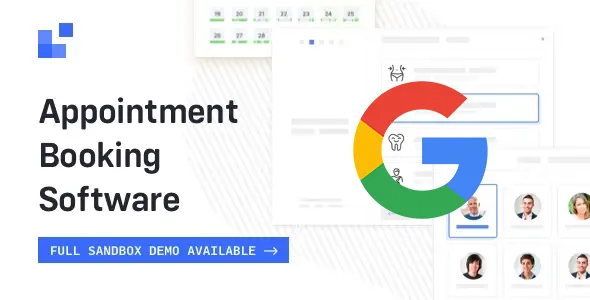
About LatePoint Google Calendar Addon
Your synced schedule depends on a call Google makes to your site
An agent blocks an afternoon in their Google Calendar from their phone. For LatePoint to find out, Google has to tell your server, because with every change on a connected calendar it sends a signal to your site. If a security plugin, a membership plugin or a server rule stops that signal, the change stays in Google and your site keeps working from the old schedule.
Two-way sync is not decided on the settings screen but by what your firewall lets through. And the symptom is small: events show up gray instead of green.
What it connects between LatePoint and Google
- Two-way sync between Google Calendar events and LatePoint bookings.
- Per-agent connection: each person signs in with their Google account.
- Choice of calendars to pull events from and push them to.
- Up-to-date availability: events deleted or moved in Google, including single occurrences of a recurring event, stop blocking hours in LatePoint.
- Google Meet video on the services you choose.
Once the account is connected, a link to the manager appears. The bookings tab shows those of the selected agent, and you send them all to Google or one at a time with the arrows icon; synced ones turn green.
Google events appear in the LatePoint calendar with the Google logo, and also in the timeline view. Two-way sync is switched on with the Enable Auto-Sync button and can be turned off whenever you like.
Google Meet links that reach the customer
Meet is enabled service by service, in each edit form, and requires the Google Calendar sync to be set up first. Enabling it is not enough: the link reaches the customer when you add the Meet URL variable to a notification.
For group appointments there is a shared mode: with it enabled on a service, all bookings in the same slot reuse a single Meet link.
Gray events: where the Google notice gets stuck
If events show up gray, something is stopping Google from reaching your server. These are the checks:
- Membership plugins: some block access to admin-post.php, the door the notice comes through.
- Security plugins and server rules, such as ModSecurity.
- The notice URL on admin-post.php: open it with your agent and calendar details in a private window, and check that it is not blocked or redirected.
- The access log: right after creating or changing an event in Google, that request should appear with a 200 code.
Connecting each agent and the first sync
It needs LatePoint installed, because it is an add-on and does not work alone. The steps are these:
- Install and activate the add-on from Settings, Add-ons.
- Enable it under Integrations, Calendars.
- On each agent's page, click Sign in with Google.
- Choose the calendars to pull from and push to.
- Open the manager, sync the bookings and click Enable Auto-Sync.
It connects through the official LatePoint app on Google. If you have your own app, you can use it by enabling the matching settings with a filter; keep in mind that if that app is in testing mode, authorizations expire after seven days.
Outlook and Zoom, the sibling pieces in LatePoint
This add-on works only with Google. If part of the team uses Outlook, Outlook Calendar for LatePoint is the equivalent piece, also two-way and per agent. If you meet on Zoom rather than Meet, Zoom Meetings for LatePoint creates the meeting when the appointment is approved.
Accounts, tokens and other calendars
Does each agent need their own Google account?
Each agent signs in with their account from their page, and their calendar syncs with their bookings.
Do I have to renew the connection by hand?
Normally not: the token updates itself while the site stays active. If it expires, or if you change your Google Console project settings, use the Refresh Token button.
Does it also sync with Outlook or Apple?
No. Those are separate integrations.
Topics
Version history
-
v
1.6.2 Current 21 Oct 2026
-
v
1.6.1 6 Aug 2026
-
v
1.6.0 30 Apr 2026
Customer reviews
Sign in to leave a review. Only people who have the product can review it.
No reviews for this product yet.
Frequently asked questions
-
GPL (General Public License) is the license under which WordPress and most premium plugins/themes are distributed. It grants you the right to use, modify and redistribute the software in as many projects as you want, with no domain restrictions.
-
Yes. With membership you get automatic updates via our GPLClub Updater plugin (installed on your WP, detects new versions and applies them). With individual purchase, you get one year of manual updates from your account.
-
Depends on the plan. Monthly: 3 domains. Semi-annual: 7. Annual and Lifetime: 15. Individual purchase: 1 domain.
-
GPLClub offers its own support for installation, configuration and compatibility. For direct support from the original author (feature requests, product-specific bugs), a license purchased from the author is required.