Sales Countdown Timer for WooCommerce
Antivirus scan
Powered by ClamAV
✅ Verified clean
This product file has passed our security filters.
Want to run a fresh ClamAV scan right now? Takes a few seconds and shows scanner version, signature DB and live result.
This can take 5 to 30 seconds.
Clean file Threat detected
No threats detected in this file.
- File
- Size
- Scanned
- ClamAV
- Signature database
⚡ Powered by ClamAV
Scan could not be completed
Report product
If you detected an issue (broken file, malware, inappropriate content, etc.) let us know and we'll review it ASAP.
Sign in to report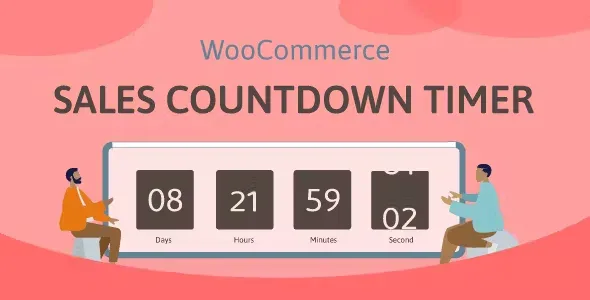
About Sales Countdown Timer for WooCommerce
Scheduling a sale in WooCommerce is easy; getting customers to notice it is ending is the hard part. If the discounted price just sits there, many people put it off "for later" and the campaign ends with visits but no orders. This plugin puts the end of the sale in plain sight, on the product page and in the listings.
A sale with an end date only works if customers can see it
People who run campaigns (Black Friday, seasonal sales, clearances) tend to polish the discount and neglect the message that it expires. A ticking clock and a stock bar turn a crossed-out price into a decision with a deadline. That only works if the sale is real: if the clock restarts by itself and the discount never ends, customers eventually notice.
What Sales Countdown Timer does on the product page and in listings
The timer appears on the product page and in the shop, and by default it shows on products with a scheduled sale, unless you decide otherwise. These are its main functions:
- Exact sale time: WooCommerce schedules a sale by date; the plugin lets you fine-tune it by hours and minutes.
- Position of your choice: before or after the price, the sale badge or the add to cart button, or over the product image. In listings (shop and categories) you have the same options.
- Where to show it: you can show or hide it in the shop, in categories and in related products.
- Variable and bulk products: a timer profile is assigned to one product, to its variations or to several products at once.
- Messages: you can announce an upcoming sale on the product page and show a sale-ended message. Both use the {countdown_timer} shortcode to insert the clock.
Stock progress bar
It shows how many units are in the campaign, how many have been sold and how many are left. You can write the message with {quantity_left}, {quantity_sold}, {percentage_left}, {percentage_sold} and {goal}. Choose whether the bar grows or shrinks, which order statuses count, whether it sits above or below the clock, and its width, height, colors and rounded borders.
Limits to keep in mind
The product clock follows WooCommerce's sale schedule: with no scheduled sale there is no automatic countdown. The progress bar needs you to set the unit goal on the product. And to limit the clock to certain pages with WordPress conditional tags, the plugin uses eval(), which allows PHP code to run: only fill that field with tags that have been validated or supplied by a trusted developer.
Questions buyers ask before installing it
Can I use it without a scheduled sale in WooCommerce?
Yes. With the shortcode you can show a clock on any page counting down to the date you choose in the admin, and the plugin doesn't need WooCommerce for that.
Can I have different clocks for different campaigns?
Yes. You can create as many profiles as you want; each one is an independent timer with its own general and design settings.
Does it work for products with variations?
Yes, you can assign the profile to variable products and also to several products at once.
Is there a countdown at checkout?
There is a checkout timer tied to a minimum cart total for a special offer. Check in the demo how it behaves before building a campaign around it.
Profiles save you from redesigning the clock for every campaign
Since each profile stores its own design, you can have one style for Black Friday and a more discreet one for weekend sales, and assign them by product. For a store with many campaigns a year, this avoids reconfiguring the clock each time.
Test the clock in your store before launching the campaign
Create a profile, assign it to a product with a sale ending in a few hours and check how it looks on the product page, in the shop and on mobile. Make sure the position doesn't clash with the buy button or the badges, and that the sale-ended message and the stock bar say what you want. Then apply it to the products in the real campaign.
Topics
Version history
-
v
1.1.11 Current 7 Sep 2026
-
v
1.1.9 10 Mar 2026
Customer reviews
Sign in to leave a review. Only people who have the product can review it.
No reviews for this product yet.
Frequently asked questions
-
GPL (General Public License) is the license under which WordPress and most premium plugins/themes are distributed. It grants you the right to use, modify and redistribute the software in as many projects as you want, with no domain restrictions.
-
Yes. With membership you get automatic updates via our GPLClub Updater plugin (installed on your WP, detects new versions and applies them). With individual purchase, you get one year of manual updates from your account.
-
Depends on the plan. Monthly: 3 domains. Semi-annual: 7. Annual and Lifetime: 15. Individual purchase: 1 domain.
-
GPLClub offers its own support for installation, configuration and compatibility. For direct support from the original author (feature requests, product-specific bugs), a license purchased from the author is required.