Super Backup and Clone
Antivirus scan
Powered by ClamAV
✅ Verified clean
This product file has passed our security filters.
Want to run a fresh ClamAV scan right now? Takes a few seconds and shows scanner version, signature DB and live result.
This can take 5 to 30 seconds.
Clean file Threat detected
No threats detected in this file.
- File
- Size
- Scanned
- ClamAV
- Signature database
⚡ Powered by ClamAV
Scan could not be completed
Report product
If you detected an issue (broken file, malware, inappropriate content, etc.) let us know and we'll review it ASAP.
Sign in to report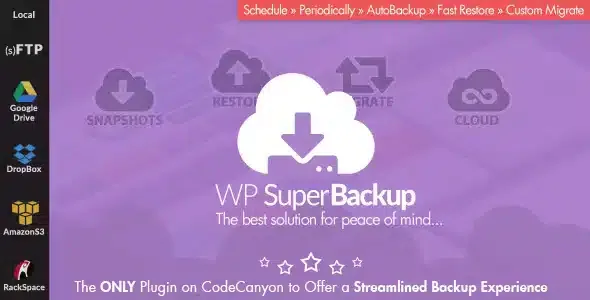
About Super Backup and Clone
For people who move sites between servers, not for those who just want a backup and to forget about it
A configuration mistake or a botched migration can wipe out weeks of work, and sometimes it is not even your fault. This plugin is built for people who have a testing environment and a production one, who move sites from one hosting to another and who manage MultiSite networks.
It is a weaker fit if you only want an automatic backup without touching anything else: it includes migration, destination and diagnostic panels that you will need to understand. Also, cloud backups require you to have your own account with the chosen service, and a backup kept on the same server will not protect you if that server disappears.
Snapshots: backups with a name, a destination and a schedule
The unit of work is the snapshot. Creating one means giving it a name and choosing one of the predefined destinations. You can have one or several, and if you set the schedule once, they run on their own.
- Logs for every task: you know the status of your latest backup without opening the server.
- One-click restore: you pick a snapshot, press Restore and the site goes back to that point.
- WordPress and non-WordPress files: the backup is not limited to what the CMS manages.
Super Backup and Clone and the rule of not depending on a single place
In security, what protects you is having layers. Here you can store each snapshot on the same server or in the cloud: Google Drive, Amazon S3, Rackspace, (S)FTP, OneDrive or Dropbox. Combining different destinations is what saves you if the server fails completely.
The main dashboard shows where each backup is, how much space it takes and when the latest one was made, and it also helps you watch your available resources so you can act in time. In the general settings tab you define email notifications, a quota, the backup directory on the server and the cleanup of old files.
Importing a backup and moving the site without breaking the destination installation
The migration panel accepts a backup that you have on your hard drive or at an external URL. You can control which files are migrated, so the move does not break what already works.
- MultiSite to MultiSite: direct migration between networks.
- MultiSite to SingleSite: if it detects a network, you can generate a single-site backup to take to a regular WordPress.
- SingleSite to MultiSite: you bring standalone sites into a specific site of your network.
If you work with staging and production, cloud sync lets you transfer all the files or only the necessary ones, following the schedule you define.
A diagnostic before launching the first backup
The System panel checks your server configuration and flags potential problems before you start, so you can fix them instead of discovering them with a failed backup. Check in the demo how it presents those warnings.
Common questions before installing Super Backup and Clone
Can I store backups outside my server?
Yes, by choosing a cloud destination or an (S)FTP. You need your own account with that service.
Can I use it to move a regular site into a MultiSite network?
Yes: you take a snapshot of the standard site and migrate it to one of the sites in your network.
Can I import a backup that I have on my computer?
Yes, from the hard drive or from an external URL, with control over what gets migrated.
Can I schedule backups?
Yes, you define the schedule once and snapshots launch on their own.
Topics
Version history
-
v
2.4 Current 8 Jan 2025
Customer reviews
Sign in to leave a review. Only people who have the product can review it.
No reviews for this product yet.
Frequently asked questions
-
GPL (General Public License) is the license under which WordPress and most premium plugins/themes are distributed. It grants you the right to use, modify and redistribute the software in as many projects as you want, with no domain restrictions.
-
Yes. With membership you get automatic updates via our GPLClub Updater plugin (installed on your WP, detects new versions and applies them). With individual purchase, you get one year of manual updates from your account.
-
Depends on the plan. Monthly: 3 domains. Semi-annual: 7. Annual and Lifetime: 15. Individual purchase: 1 domain.
-
GPLClub offers its own support for installation, configuration and compatibility. For direct support from the original author (feature requests, product-specific bugs), a license purchased from the author is required.