Tickera Seating Charts
Antivirus scan
Powered by ClamAV
✅ Verified clean
This product file has passed our security filters.
Want to run a fresh ClamAV scan right now? Takes a few seconds and shows scanner version, signature DB and live result.
This can take 5 to 30 seconds.
Clean file Threat detected
No threats detected in this file.
- File
- Size
- Scanned
- ClamAV
- Signature database
⚡ Powered by ClamAV
Scan could not be completed
Report product
If you detected an issue (broken file, malware, inappropriate content, etc.) let us know and we'll review it ASAP.
Sign in to report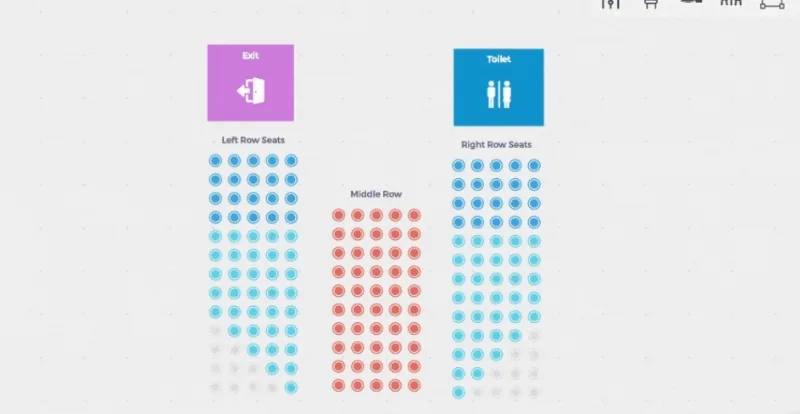
About Tickera Seating Charts
Selling numbered tickets with a "choose your zone" form ends in phone calls, emails and two people holding the same seat at the door. Someone buying a ticket for a theater or a gala wants to see the plan and point at their seat. This add-on turns your venue layout into a map the buyer can click.
Why the floor plan is part of what you sell at a seated event
At an event with numbered seats, location is part of the product, not a logistical detail: row 3 and the back of the hall are not worth the same, and buyers know it. If they cannot see where they will sit, they hesitate, ask questions or buy something else. Tickera Seating Charts lets them see it before paying, with the venue drawn as it really is, and lets you assign different ticket types to each zone.
A floor plan editor you use by dragging
The chart is built with drag and drop: you can move, resize and rotate any element, and what you draw is exactly what the customer will see. The available elements are:
- Seating groups: rows and columns you can edit on the fly, assigning or removing ticket types.
- Standing areas: areas for concerts or festivals to which you assign a ticket type.
- Tables: round or square, with seats around them, for banquets, galas or dinner shows.
- Seat labels: you set them one by one, or select several seats and Tickera numbers them automatically.
- Areas of interest and text areas: entrances, exits, restrooms, food and drink stands, or notes such as the name of an aisle.
You can mix seats, tables and standing areas in the same chart, and mouse-wheel zoom and pan controls help with large venues, for the buyer too on the purchase page.
Three situations where it fits
Theater or small venue
You draw the stalls, the balcony and the aisles, label the rows and assign a ticket type to each section. You can give every seat its own ticket type if you want per-seat pricing, and there is no limit on ticket types per chart.
Concert or festival with mixed zones
You can define seated sections (VIP, reserved, balcony) and standing areas (general admission, pit) in the same chart. The buyer sees both options on the event page and picks the one they prefer.
Gala dinner or banquet
You place round or square tables, distribute the seats around them and mark the stage or bar with areas of interest. It helps when every guest needs to know which table to go to.
How the buyer experiences it
The flow is short: pick one or several seats, add them to the cart, go to the cart and finish the purchase. Availability updates in real time through Google Firebase: as soon as someone puts a seat in their cart, everyone else sees it as unavailable, even if that person has not paid yet. This prevents two people from choosing the same spot. Once published, the chart stays editable: move, duplicate, delete, rotate, change text or start from scratch. You place it on any page or post with a shortcode or a Gutenberg block.
It needs the Tickera plugin as its base
It does not work on its own: it is an add-on for the Tickera plugin, which handles the ticket sales. WooCommerce is not required; it works with Tickera alone. If you already sell with WooCommerce, there is the Bridge for WooCommerce add-on, with which the buyer picks a seat and pays in your store. And since availability depends on Google Firebase, check in the demo how it behaves with your own chart before launching sales.
Frequently asked questions
Can I sell seated and standing tickets in the same event?
Yes. You define seated sections and standing areas in the same chart and the buyer chooses.
How many ticket types does a chart support?
Unlimited. You can assign a different one to each section or even to each seat.
Can I change the chart after publishing it?
Yes, it is fully editable: add or remove seats, rotate elements, change text or rebuild it.
Where do I show it on my site?
On pages, posts or custom templates, with a Tickera shortcode or a Gutenberg block.
Do I need to know how to code?
No. The chart is built in a visual editor, without code.
Topics
Version history
-
v
0.79 Current 13 May 2024
Customer reviews
Sign in to leave a review. Only people who have the product can review it.
No reviews for this product yet.
Frequently asked questions
-
GPL (General Public License) is the license under which WordPress and most premium plugins/themes are distributed. It grants you the right to use, modify and redistribute the software in as many projects as you want, with no domain restrictions.
-
Yes. With membership you get automatic updates via our GPLClub Updater plugin (installed on your WP, detects new versions and applies them). With individual purchase, you get one year of manual updates from your account.
-
Depends on the plan. Monthly: 3 domains. Semi-annual: 7. Annual and Lifetime: 15. Individual purchase: 1 domain.
-
GPLClub offers its own support for installation, configuration and compatibility. For direct support from the original author (feature requests, product-specific bugs), a license purchased from the author is required.