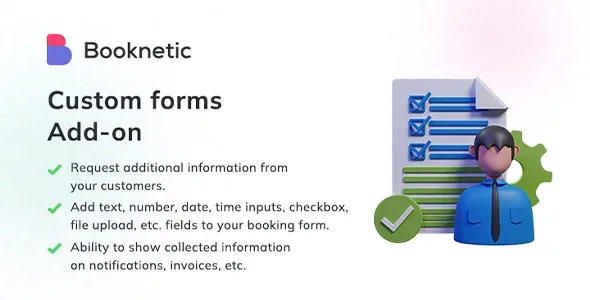
Booknetic Custom Forms Addon
Antivirus scan
Powered by ClamAV
✅ Verified clean
This product file has passed our security filters.
Want to run a fresh ClamAV scan right now? Takes a few seconds and shows scanner version, signature DB and live result.
This can take 5 to 30 seconds.
Clean file Threat detected
No threats detected in this file.
- File
- Size
- Scanned
- ClamAV
- Signature database
⚡ Powered by ClamAV
Scan could not be completed
Report product
If you detected an issue (broken file, malware, inappropriate content, etc.) let us know and we'll review it ASAP.
Sign in to reportNewer version out, or a problem?
About Booknetic Custom Forms Addon
Separate booking forms for each service with Booknetic Custom Forms
When a business books appointments for very different services, a single form ends up asking for data that is useless for some services and leaves out what you really need for others. With this add-on, each service can have its own questions, so the customer only answers what applies to the booking they are making.
Create a form and assign it to the services you need
From the Custom Forms module in Booknetic, you create a new form, give it a unique name and choose which services it applies to. If you select none, the form is available for all services, which is handy when you want one general question across the whole schedule. You assign each form to the services you choose, so you can use a different one for each group of services.
A drag and drop builder with thirteen field types
The Form Builder lets you drag fields from the left panel into the form layout. Then, in the right panel, you adjust each field: its label, placeholder text and any validation rules you want to apply. The available types are:
- Label: static text to guide or inform the customer.
- Text Input: short answers.
- Text Area: longer texts.
- Number Input: numeric values.
- Date Input: the customer picks a date.
- Time Input: the customer picks a time.
- Select: a dropdown list with a single choice.
- Checkboxes: several options at once.
- Radio Buttons: one option from a list.
- File Upload: the customer uploads a file.
- Link: collects a URL.
- Email: an email address field.
- Phone: a phone number field.
Conditional fields: the customer sees only what affects them
With Form Conditions you can show or hide a field, enable or disable it, set a value or throw an error depending on what the customer answered earlier. If they pick a specific service from a dropdown, service-specific questions appear. If they choose a second location, a time field can appear. When you combine several rules, the AND and OR operators let you define how they must be met.
A typical case is a wedding package that reveals questions about the event details, or a text field that only appears if the customer chooses "Other". The form is shorter for anyone who doesn't need it, and you collect more precise data because each question is asked when it makes sense.
Save, edit and review each booking's responses
From the forms list you can update or delete each form with the options next to its name, and delete several at once by selecting them. To see what a customer answered, open the appointment from Appointments or Calendar and go to the "Custom fields" tab in its details. In the Appointments list, that view opens from the three dots next to the appointment, using the info button.
Using the responses in workflows is not yet available
Although the add-on collects data during booking, the integration with Booknetic workflows, which would let you use those answers in automatic emails or SMS, is not yet available. For now, responses are checked in each appointment.
Frequently asked questions about Booknetic Custom Forms Addon
Can I have different forms for each service?
Yes. You create a form, choose its services and, if you select none, it is shown for all of them.
How do I show a field only in some cases?
With a condition: the field appears, disappears, is enabled or is disabled depending on an earlier answer. You can combine several rules with AND and OR.
Where do I see what a customer answered?
In the details of their appointment, in the "Custom fields" tab. You can reach the appointment from Appointments or from Calendar.
Can the responses be used in automatic emails or SMS?
Not yet. The integration of the responses with workflows is not yet available.
What you need to set up service-specific forms in Booknetic
It needs Booknetic installed and active, because it extends its forms module.
If you do not select any service when creating a form, it applies to all of them. Assigning it to specific services is what lets each service have its own questions.
Topics
Version history
-
v
2.1.5 Current 9 May 2024
Customer reviews
Sign in to leave a review. Only people who have the product can review it.
No reviews for this product yet.
Frequently asked questions
-
GPL (General Public License) is the license under which WordPress and most premium plugins/themes are distributed. It grants you the right to use, modify and redistribute the software in as many projects as you want, with no domain restrictions.
-
Yes. With membership you get automatic updates via our GPLClub Updater plugin (installed on your WP, detects new versions and applies them). With individual purchase, you get one year of manual updates from your account.
-
Depends on the plan. Monthly: 3 domains. Semi-annual: 7. Annual and Lifetime: 15. Individual purchase: 1 domain.
-
GPLClub offers its own support for installation, configuration and compatibility. For direct support from the original author (feature requests, product-specific bugs), a license purchased from the author is required.