Gravity Forms Image Choices
Antivirus scan
Powered by ClamAV
✅ Verified clean
This product file has passed our security filters.
Want to run a fresh ClamAV scan right now? Takes a few seconds and shows scanner version, signature DB and live result.
This can take 5 to 30 seconds.
Clean file Threat detected
No threats detected in this file.
- File
- Size
- Scanned
- ClamAV
- Signature database
⚡ Powered by ClamAV
Scan could not be completed
Report product
If you detected an issue (broken file, malware, inappropriate content, etc.) let us know and we'll review it ASAP.
Sign in to report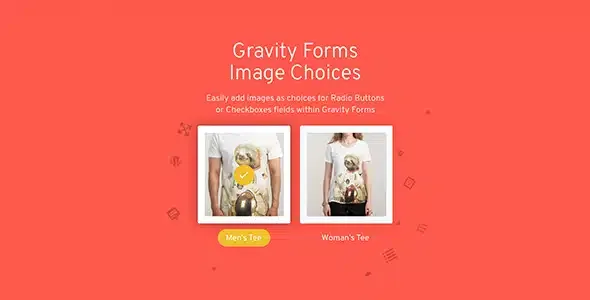
About Gravity Forms Image Choices
When the answer is seen before it is read
Some questions are handled badly by a form that only has words: which finish you want, which model you prefer, which style you like. The customer reads two similar names, imagines something and ticks a box with doubts. If they have to choose by looking, each option needs its image.
Image Choices, by JetSloth, puts that image on Gravity Forms radio buttons and checkboxes. And there is something worth knowing before installing it: Gravity Forms has had its own image field since version 2.9. The question is no longer how to put photos in a form, but which field they need to be in.
The native field arrived as a new field type. In that version it did not cover product, option, survey or quiz fields, and moving to it meant rebuilding the fields. Image Choices is switched on over the fields you already use, so its place is the form that charges, scores or surveys. If you only need one standalone question with photos, try the native field first.
Which Gravity Forms fields accept images
- Radio buttons and checkboxes, with PNG, JPG, GIF or SVG images picked from the media library.
- Survey, poll and quiz, set up as radio buttons or checkboxes. They need the Gravity Forms Survey, Polls or Quiz add-ons installed.
- Product and product options, including the single product with quantity selection, which keeps the total field, calculations and conditional logic.
- Shipping, when the field is set to radio buttons.
Six looks and columns per screen
It comes with six ready-made themes: Simple, Cover Tile, Polaroid, Float Card, Porthole and Circle. The layout control sets how many columns appear on desktop, tablet and mobile, and the image can display in cover, natural or fit mode. Labels are shown or hidden per field.
A zoom icon opens the enlarged image in a lightbox, useful when the detail decides the choice. There is also lazy loading and compatibility with the Gravity Forms CSS Ready list classes, and JetSloth offers a small separate utility for bulk replacing image URLs.
What happens to the image after submission
In the dashboard, the entries table and each entry detail show an image preview, and editing an entry brings up the same selection interface.
In emails, {all_fields} follows the form display setting, and the :image modifier shows the image of a specific field, at 80 px by default. Each field can opt for text, image, label or combinations of image with label or value.
Where it stops
It only works with radio button and checkbox fields. Nor does it work on its own: it is a Gravity Forms add-on.
Gravity PDF does not show the image out of the box. By default the PDF shows the chosen text or value. To make the image appear you must pick a display that includes the image and add a filter in the theme or a custom plugin, with a different function for product fields.
The horizontal row with a scroll bar also calls for added JavaScript. And disabling the add-on styles means writing all the CSS for those fields yourself.
From a text option to a photo option
It needs Gravity Forms 2.6 or later. To begin on an existing form:
- Open the radio button or checkbox field and enable images.
- Choose the image for each option in the media library.
- Select the theme, columns per device and image mode.
- Submit a test entry and review the result in the entry and the notification.
Gravity Forms and the add-ons it takes
The base is Gravity Forms. For images in a quiz, survey or poll you need Quiz, Survey or Polls. If the options must come from entries or other fields, Image Choices works with Populate Anything.
Before filling the form with photos
Does it work with dropdowns?
No. It only works with radio button and checkbox fields.
Does it still make sense alongside the native Gravity Forms field?
If you need images in product, survey or quiz fields, compare both on your Gravity Forms version. The native field was born as a separate field, without those uses.
Does the image show in the email?
Yes, if the display includes it. With :image you can set the width in pixels, for example {Field:1:image_100px}.
Does it work with Gravity PDF?
Yes, but to make the image appear you must add a filter as well as adjust the display. The final look depends on the PDF template.
Topics
Version history
-
v
1.7.4 Current 1 Nov 2026
-
v
1.7.3 2 Oct 2026
-
v
1.7.0 12 Aug 2026
-
v
1.6.17 3 May 2026
Customer reviews
Sign in to leave a review. Only people who have the product can review it.
No reviews for this product yet.
Frequently asked questions
-
GPL (General Public License) is the license under which WordPress and most premium plugins/themes are distributed. It grants you the right to use, modify and redistribute the software in as many projects as you want, with no domain restrictions.
-
Yes. With membership you get automatic updates via our GPLClub Updater plugin (installed on your WP, detects new versions and applies them). With individual purchase, you get one year of manual updates from your account.
-
Depends on the plan. Monthly: 3 domains. Semi-annual: 7. Annual and Lifetime: 15. Individual purchase: 1 domain.
-
GPLClub offers its own support for installation, configuration and compatibility. For direct support from the original author (feature requests, product-specific bugs), a license purchased from the author is required.