GeoDirectory WP All Import
Antivirus scan
Powered by ClamAV
✅ Verified clean
This product file has passed our security filters.
Want to run a fresh ClamAV scan right now? Takes a few seconds and shows scanner version, signature DB and live result.
This can take 5 to 30 seconds.
Clean file Threat detected
No threats detected in this file.
- File
- Size
- Scanned
- ClamAV
- Signature database
⚡ Powered by ClamAV
Scan could not be completed
Report product
If you detected an issue (broken file, malware, inappropriate content, etc.) let us know and we'll review it ASAP.
Sign in to report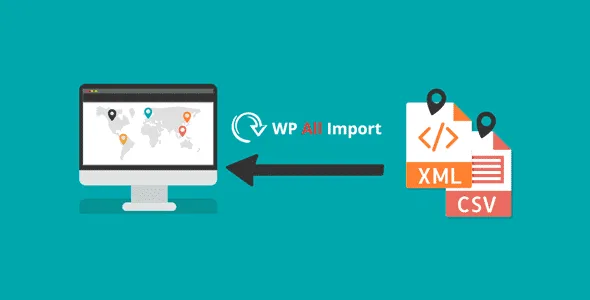
About GeoDirectory WP All Import
The second import is the one that makes a mess of your directory
Loading a file of businesses into a new directory is the part everyone prepares for. The trouble tends to come later: you correct some data in your sheet, run the import again and, if the file supplies images by URL, every photo is downloaded once more.
The cause is specific: the import supplies URLs without the IDs GeoDirectory has already given those images, so it treats them as new. A directory is rarely imported just once, so it pays to decide on the first run how the next one will work. This add-on connects WP All Import with GeoDirectory, and doing it well means knowing three or four mapping rules.
Your columns, in GeoDirectory fields
Once installed, the WP All Import wizard gains a section called GeoDirectory Addon, where the directory fields appear so you can map your data into them. It accepts XML and CSV files, from a legacy CMS or from another WordPress site. The WP All Import developers tested it and approved it.
- Categories: names or IDs separated by commas. Those that do not exist are created.
- Main category: goes in the Default Category field.
- Images: URLs separated by two colons (
::). The first becomes the featured image, and each URL must end in a file name with an image extension, such as .jpg or .png. - Logo and other file fields: appear under their own names and need the full URL. A media library ID will not work, even if the image is already there.
Three wizard sections that seem to do the same job
WP All Import has its own taxonomy and image sections, and that is where people trip. If you use only those, categories can show in the admin list but not on the listing, and images or the logo may not appear.
Categories are mapped on both sides: in GeoDirectory Addon and in Taxonomies, with the taxonomy for your listing type (for example, gd_placecategory). Images, however, go only in the GeoDirectory field: if you also use the featured image or gallery options in WP All Import, WordPress and GeoDirectory each add a copy.
How to repeat the import without duplicating photos
WP All Import only changes the data you tick under its update options, and that gives you control. There are two paths, depending on what changes:
- The images stay the same: set the saved import to leave them alone on updates and tick only the fields that change, such as prices.
- The images change too: start from a GeoDirectory export, so each image keeps its ID. That ID is GeoDirectory's own, not the media library ID.
If a new run needs to update images, taxonomies or custom fields, tick them: whatever you leave unticked is skipped.
Installing the add-on and testing with a few rows
You need GeoDirectory and the free WP All Import plugin, installed and active. Without them, this add-on has nothing to connect.
- Install and activate the add-on together with WP All Import.
- Go to All Import, New Import, and load your file.
- In step 3, expand GeoDirectory Addon and map your columns to each field.
- Import a few rows and check a listing on the public side, not only in the admin.
If your project needs more pieces
To import regularly from other formats, WP All Import Pro also accepts Excel and Google Sheets, and schedules automatic imports. If the directory will cover several countries, regions or cities, GeoDirectory Location Manager adds location pages and a switcher for moving between them. The catalog also has GeoDirectory Social Importer.
What to settle before you run the file
Can I import without WP All Import?
GeoDirectory has its own CSV importer under Import/Export, Listings. This add-on is for anyone who wants to work with the WP All Import wizard.
What happens if my file has no latitude or longitude?
In GeoDirectory's own importer, coordinates are looked up from the address if you leave those columns empty. With WP All Import, test with a few rows first.
Why do I see a category in the admin but not on the listing?
This usually means it was mapped only in the taxonomy section. Map it in GeoDirectory Addon as well.
Topics
Version history
-
v
2.3.10 Current 2 May 2026
Customer reviews
Sign in to leave a review. Only people who have the product can review it.
No reviews for this product yet.
Frequently asked questions
-
GPL (General Public License) is the license under which WordPress and most premium plugins/themes are distributed. It grants you the right to use, modify and redistribute the software in as many projects as you want, with no domain restrictions.
-
Yes. With membership you get automatic updates via our GPLClub Updater plugin (installed on your WP, detects new versions and applies them). With individual purchase, you get one year of manual updates from your account.
-
Depends on the plan. Monthly: 3 domains. Semi-annual: 7. Annual and Lifetime: 15. Individual purchase: 1 domain.
-
GPLClub offers its own support for installation, configuration and compatibility. For direct support from the original author (feature requests, product-specific bugs), a license purchased from the author is required.