Simple File List Pro
Antivirus scan
Powered by ClamAV
✅ Verified clean
This product file has passed our security filters.
Want to run a fresh ClamAV scan right now? Takes a few seconds and shows scanner version, signature DB and live result.
This can take 5 to 30 seconds.
Clean file Threat detected
No threats detected in this file.
- File
- Size
- Scanned
- ClamAV
- Signature database
⚡ Powered by ClamAV
Scan could not be completed
Report product
If you detected an issue (broken file, malware, inappropriate content, etc.) let us know and we'll review it ASAP.
Sign in to report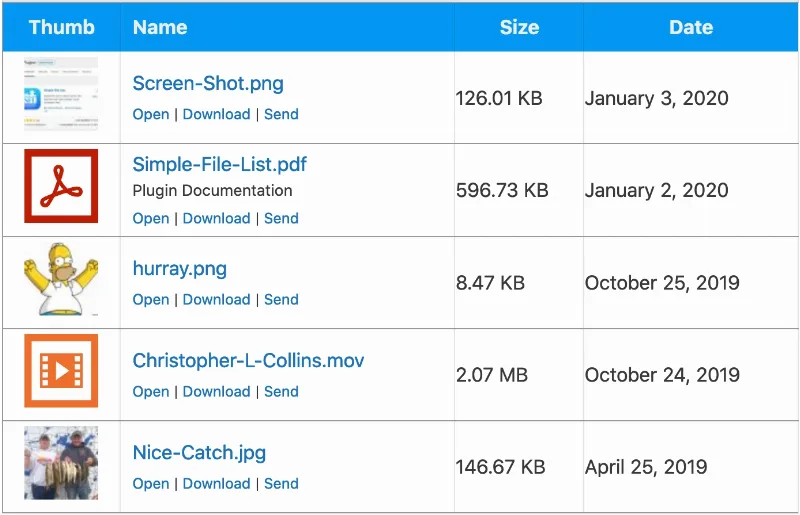
About Simple File List Pro
Seeing, uploading and deleting are three different permissions
A shared folder usually starts with a single decision: who gets in. You give a client access to drop off their plans, a member access to download minutes, or the team access to keep forms at hand. Weeks later someone has deleted a file another person needed, and you find out that opening the door also handed over the keys to the cabinet.
Simple File List Pro shows a file list on a WordPress page, with an upload form, and separates those decisions. Who sees the list, who uploads and who manages are set independently, and the same list can behave differently on each page where you place it.
The Pro version adds what the free one lacks: unlimited folders and sub-folders, bulk editing and showing a specific folder on a specific page.
The list, the upload and the notice email
- Three list styles: Table, Tiles and Flex, with a Light, Dark or None theme.
- Per-file actions: open, download, copy the link, and download whole folders as a ZIP.
- Upload limits: number of files per submission, maximum size and accepted extensions.
- Uploader details: optional description, plus name and email, taken from the account if the person is logged in.
- Email notices: a notification for each front-side upload, with your own recipients, copies, subject and text.
- Storage: files go to a special folder inside uploads, or wherever you specify, outside the Media Library.
How to split permissions on each page
The [eeSFL] shortcode places the list on a page, post or widget, and its attributes change behavior only in that spot:
- See:
showlistaccepts YES, ADMIN, USER or NO. - Upload:
allowuploadsaccepts the same four options. - Manage:
frontmanagegives the front side the same editing and deletion as the dashboard. - Folder:
folderpoints to a path inside the main list.
Combined, they let you set up a drop box where users upload without seeing what is there, or a library everyone reads and only you feed. Try the combination with a user account before opening it up. Take care with front-end management: with it on, anyone with access to the list can also create folders, and a deleted file is gone forever.
A hidden list does not make the file secret
Restricting the list controls who sees it, but a file's individual link may still work. Blocking direct access only works on Apache; other servers, such as Nginx or IIS, need their own configuration. Test a direct link before uploading sensitive documents.
Public lists, with their descriptions, can appear in search engines. To avoid that, block the page in robots.txt or limit the list to logged-in users.
Three functions are separate Pro extensions, not the base plugin: File Access Manager (multiple lists with permissions by role, group or user), Search & Pagination and File Sending. That extension's search looks at names, descriptions and uploader details, not inside files.
Your first shared folder
Install the plugin, open its list in the dashboard and follow this order:
- Plan the folders before creating them and keep few files in the main list.
- Create the folders and upload files inside them, or use Move to place them.
- Check in the settings who sees, who uploads and which extensions are accepted.
- Open the folder and copy its shortcode to the page where it should appear.
- If you add files by FTP, click Re-Scan Files: the plugin will rename them so they work as URLs.
When you need something other than a list
To present documents in a searchable collection, Document Library Pro shows them in a table, grid or folders, with download and preview buttons.
If what you want is to work on the site's files from the dashboard, without FTP, rather than publish them for your users, File Manager Pro puts a manager with a code editor inside WordPress.
Overwriting, opening and downloading files
Can an upload overwrite a file?
That behavior is set in the settings. Check yours before opening uploads to more people.
Why does a file open instead of downloading?
With the Open action it depends on the browser. The Download action forces the download.
Version history
-
v
6.1.10 Current 8 Jan 2025
Customer reviews
Sign in to leave a review. Only people who have the product can review it.
No reviews for this product yet.
Frequently asked questions
-
GPL (General Public License) is the license under which WordPress and most premium plugins/themes are distributed. It grants you the right to use, modify and redistribute the software in as many projects as you want, with no domain restrictions.
-
Yes. With membership you get automatic updates via our GPLClub Updater plugin (installed on your WP, detects new versions and applies them). With individual purchase, you get one year of manual updates from your account.
-
Depends on the plan. Monthly: 3 domains. Semi-annual: 7. Annual and Lifetime: 15. Individual purchase: 1 domain.
-
GPLClub offers its own support for installation, configuration and compatibility. For direct support from the original author (feature requests, product-specific bugs), a license purchased from the author is required.