WP Media Folder Cloud Addon
Antivirus scan
Powered by ClamAV
✅ Verified clean
This product file has passed our security filters.
Want to run a fresh ClamAV scan right now? Takes a few seconds and shows scanner version, signature DB and live result.
This can take 5 to 30 seconds.
Clean file Threat detected
No threats detected in this file.
- File
- Size
- Scanned
- ClamAV
- Signature database
⚡ Powered by ClamAV
Scan could not be completed
Report product
If you detected an issue (broken file, malware, inappropriate content, etc.) let us know and we'll review it ASAP.
Sign in to report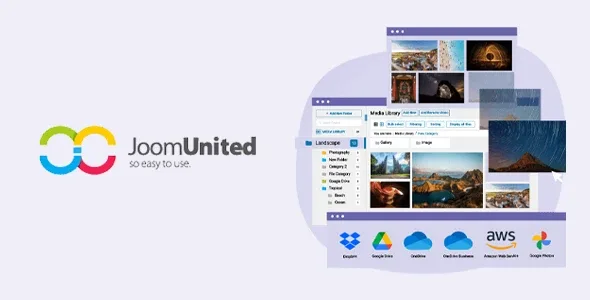
About WP Media Folder Cloud Addon
Your site's images are already in a folder before they reach WordPress
In almost any team, photos and documents are not born in WordPress. The photographer drops them in a Google Drive folder, the designer sends a Dropbox link, the sales team keeps the catalogues in OneDrive. And someone, every week, downloads those files to their computer and uploads them again to the media library, one by one.
That courier work never shows up on an invoice, but it repeats endlessly and creates copies that no longer match the original. The problem is not where the files are stored, but that they are in two places at once. The WP Media Folder Cloud Addon connects those cloud folders with the media library, so the file the team already has is used directly on the site.
Two different jobs in the same add-on
Connecting folders your team already uses. Google Drive, Google shared drives, Google Photos, Dropbox, OneDrive and OneDrive Business, plus Nextcloud, OwnCloud and pCloud. This is about working with files where they already are.
Moving media off the server. Amazon S3, DigitalOcean, Wasabi, Linode, Google Cloud Storage, Cloudflare R2, Bunny Storage and Vultr, so uploads are served from external storage, with CDN support on S3, DigitalOcean, Google Cloud and Wasabi.
Drive inside the media library
- Two-way sync with Google Drive, automatic or forced for everything or for one folder.
- Three ways to run it: AJAX, Curl or cron tasks, depending on your server, and in the background.
- Drag to the cloud a file from the library into a Drive folder or another service.
- Embed Drive files in content, served from Google's servers, and PDFs with pagination, zoom and rotation.
- Thumbnails generated for cloud images.
- Access by user or by role to folders, with public or private links.
- Optional automatic download of cloud files into the library.
Both ways also means deleting both ways
From WordPress you can create, rename, move and delete Drive files and folders, and the same the other way round. That is the convenience, and it is also the risk: the Drive folder stops belonging only to the team and becomes part of the site.
Before connecting it, decide who can touch it. Someone tidying their Drive on a Friday may be moving images that a published page uses. Restricting folders by role in WordPress and creating a folder just for the site avoids most scares.
Google shared drives are in the G Suite version, not in a personal account.
The site folder first, the sync afterwards
It is an add-on for WP Media Folder, the plugin that puts folders in the media library, so it needs that plugin installed. And an account with each service you connect.
- Create a folder in your cloud just for the site, separate from the team's.
- Connect the account, with your Google user or with your own Google app.
- Choose the sync mode your server supports: AJAX, Curl or cron.
- Restrict access to those folders by role before opening them to the rest of the team.
- Test with one image: upload it to Drive, use it on a page and check that it displays.
If you only want to offload media, or only organise it
If you only want to move uploads off the server and do not need Drive or Dropbox, Next3 Offload takes files to more than twenty S3-compatible storage services, rewrites the addresses and lets you delete the local copy. For that same job there is also WP Offload Media.
If what you lack is order rather than cloud, WP Media Folder is the foundation, and HappyFiles Pro adds folders to the library without moving the files.
Services, sync and permissions
Which cloud services does it connect?
Google Drive, Google Photos, Dropbox, OneDrive, Nextcloud, OwnCloud and pCloud, plus eight external storages.
Does the Drive sync go only one way?
No, it goes both ways: what you change in WordPress is reflected in Drive and vice versa.
Do I need WP Media Folder?
Yes, it is an add-on for that plugin.
Can I restrict who sees the cloud folders?
Yes, by user or by WordPress role.
Does Cloudflare R2 or Bunny work?
Yes, both are among the destinations for offloading media.
Does it work with Google shared drives?
Yes, with the G Suite version.
Version history
-
v
4.2.0 Current 5 Sep 2026
-
v
4.1.8 12 Aug 2026
-
v
4.1.5 17 Apr 2026
Customer reviews
Sign in to leave a review. Only people who have the product can review it.
No reviews for this product yet.
Frequently asked questions
-
GPL (General Public License) is the license under which WordPress and most premium plugins/themes are distributed. It grants you the right to use, modify and redistribute the software in as many projects as you want, with no domain restrictions.
-
Yes. With membership you get automatic updates via our GPLClub Updater plugin (installed on your WP, detects new versions and applies them). With individual purchase, you get one year of manual updates from your account.
-
Depends on the plan. Monthly: 3 domains. Semi-annual: 7. Annual and Lifetime: 15. Individual purchase: 1 domain.
-
GPLClub offers its own support for installation, configuration and compatibility. For direct support from the original author (feature requests, product-specific bugs), a license purchased from the author is required.