Events Year View for Calendarize it!
Antivirus scan
Powered by ClamAV
✅ Verified clean
This product file has passed our security filters.
Want to run a fresh ClamAV scan right now? Takes a few seconds and shows scanner version, signature DB and live result.
This can take 5 to 30 seconds.
Clean file Threat detected
No threats detected in this file.
- File
- Size
- Scanned
- ClamAV
- Signature database
⚡ Powered by ClamAV
Scan could not be completed
Report product
If you detected an issue (broken file, malware, inappropriate content, etc.) let us know and we'll review it ASAP.
Sign in to report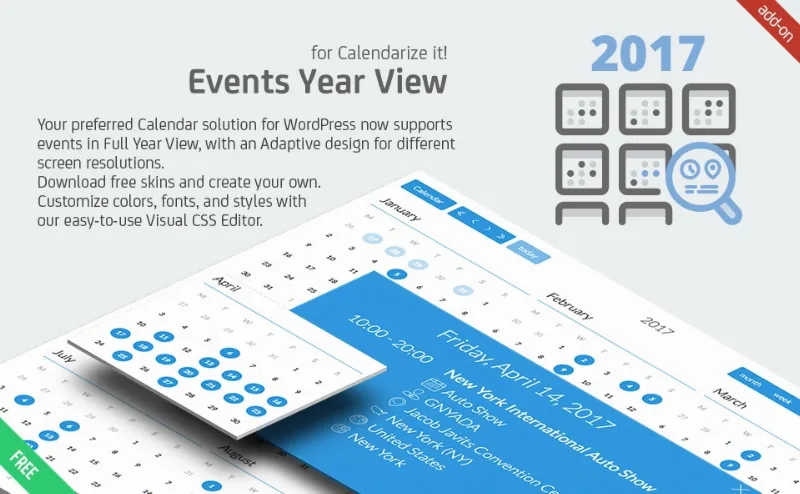
About Events Year View for Calendarize it!
In your year, the fullest days lose the color of their events
Someone planning their year around your events is not looking for what happens this week. They want to see when there is activity and when there is none, and with a monthly calendar that means moving page by page and comparing from memory.
A year view solves this at a glance, but it treats two kinds of day differently. A day with a single event keeps its color and can link straight to its details, while a day with several uses the default color and follows the general click action.
That is why colors help you read isolated dates, and why you should choose the click action with multi-event days in mind. Events Year View is a Calendarize it! add-on that brings this full-year view to your WordPress calendar.
The year view inside your calendar
- Its own year view: it joins your calendar views through the
rhc_yearvalue of thedefaultviewattribute. - Year navigation: the
prevYearandnextYearbuttons jump from one year to another. - View switching: the header can offer Year, Month, Week, Day and List, so visitors move from the whole to the detail.
- Link to the event list: the click action can go to Event List view while keeping the chosen date.
- Your own style: the Visual CSS Editor lets you create your own look.
- Languages: it includes Spanish translation files, and the Year View button label works with Easy Translation Manager and WPML.
A year calendar filtered by organizer and country
This view combines with the Taxonomy Filter add-on. Above the full year you can show dropdowns for calendars, organizers, countries, states and venues, and choosing a value narrows the calendar to those events.
An organization with several venues could set it up like this:
- Create a calendar with
defaultview="rhc_year". - Put the year buttons and the
btn_tax_calendarandbtn_tax_organizerfilters inheader_left. - Put the country and state filters, or the view-switching buttons, in
header_right. - Use
tax_filter_multipleto decide whether each list accepts several values or just one.
Test this setup with your own data before publishing it, especially if many days hold several events.
What depends on other add-ons
This piece provides the view, and part of what surrounds it comes from elsewhere:
- Calendarize it! is essential, because the add-on relies on its events and its shortcode.
- Filters require Taxonomy Filter.
- Color by taxonomy requires Event Color by Taxonomy, which assigns a default color to the events of a calendar, venue or organizer. Events colored one by one keep their own.
- The FLAT UI Calendar widget does not show the year view button.
The default view for the whole site is set in the options panel, and each calendar can change it with its attributes.
Requirements and setup
You need WordPress with Calendarize it! active and events created.
- Install and activate the add-on alongside Calendarize it!.
- Insert the calendar shortcode on a page with
defaultview="rhc_year". - Use
header_left,header_centerandheader_rightto place the navigation, for exampletitlein the center. - Set the click action and check how a day with one event and a day with several respond.
- Adjust colors and style with the Visual CSS Editor.
More pieces for your event calendar
For the same calendar, External Event Sources deals with external event sources, Social Sharing Panel with the sharing panel and Member Profile with member profiles.
If you are comparing other calendar systems, look at GravityCalendar, Event Calendar WD and Divi Events Calendar.
Answers about Events Year View
Can the year view open by default?
Yes. The defaultview attribute decides which view each calendar starts with.
Can visitors choose only one filter at a time?
Yes, with Taxonomy Filter. The default value of tax_filter_multiple allows several selections, and with 0 each list accepts one.
Can someone subscribe to the calendar from this view?
Yes. The iCal Feed dialog gives the feed URL to copy into apps such as Google Calendar, and lets visitors download the ICS file.
How do I know what each color means?
Event Color by Taxonomy includes a shortcode that displays a color key, and those colors also appear in the Taxonomy Filter lists.
Topics
Version history
-
v
1.1.0.98301 Current 12 May 2024
Customer reviews
Sign in to leave a review. Only people who have the product can review it.
No reviews for this product yet.
Frequently asked questions
-
GPL (General Public License) is the license under which WordPress and most premium plugins/themes are distributed. It grants you the right to use, modify and redistribute the software in as many projects as you want, with no domain restrictions.
-
Yes. With membership you get automatic updates via our GPLClub Updater plugin (installed on your WP, detects new versions and applies them). With individual purchase, you get one year of manual updates from your account.
-
Depends on the plan. Monthly: 3 domains. Semi-annual: 7. Annual and Lifetime: 15. Individual purchase: 1 domain.
-
GPLClub offers its own support for installation, configuration and compatibility. For direct support from the original author (feature requests, product-specific bugs), a license purchased from the author is required.